
How to setup my X (Twitter) account?
Learn how to connect your X (Twitter) account with Statuz using the X Developer Portal. A simple 2-minute process.
To connect your X (Twitter) account with Statuz, you'll need to create an app in the X Developer Portal, for free.
Don't worry as it's a super simple process that should not take you more than 2 minutes! Here's a step-by-step guide:
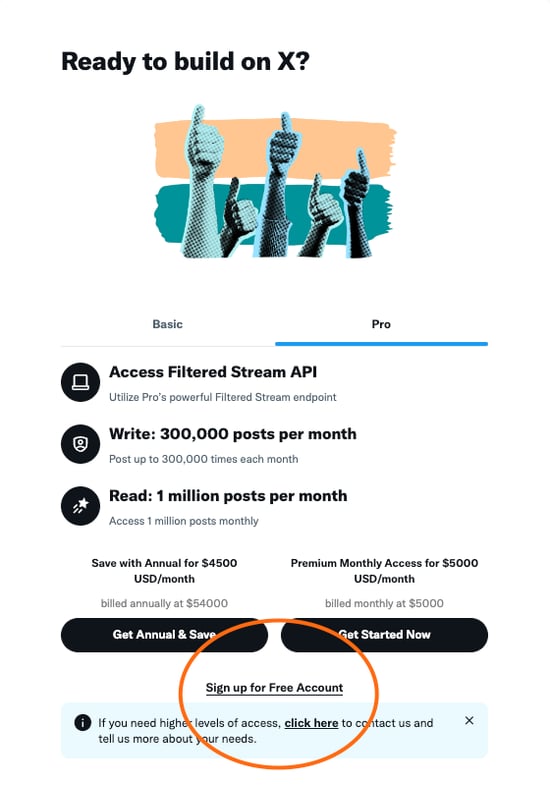 Screen for those who never created an app before
Steps:
After creating the app, X should show you the Consumer Keys right away in case you had apps before. if not, look for the "Projects & apps" tab, click the settings option. It's the entry underneath the project name.
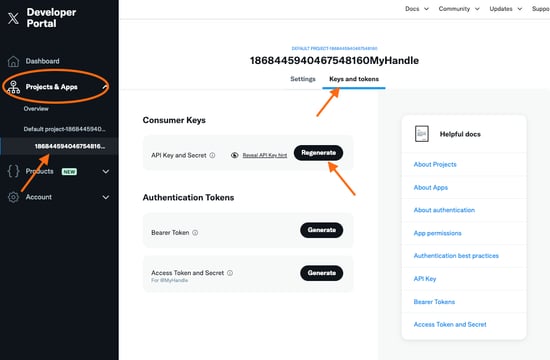 Screen where you can find your consumer keys and regenerate when needed
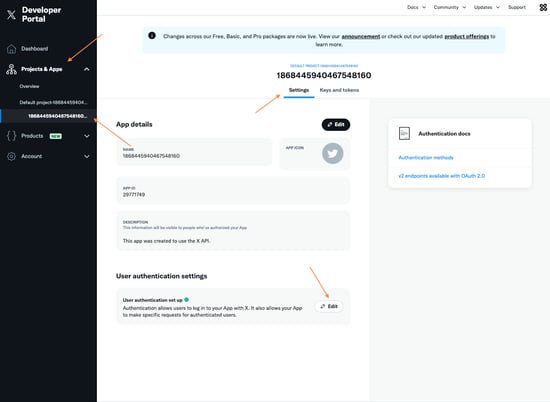 Screen where you can find the User authentication settings setup
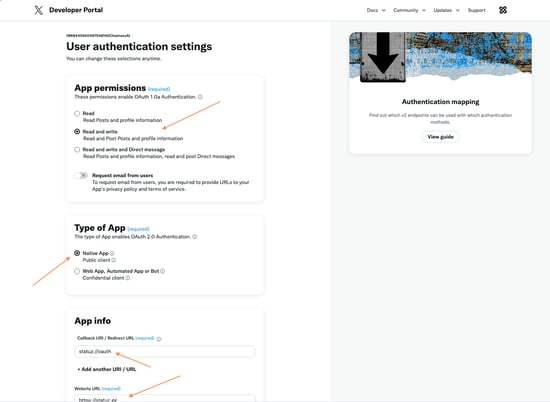 Screen where you can configure the User authentication
That's it! Click "Save" and wait about 30 seconds for the changes to take effect. You can ignore any OAuth 2.0 tokens or other settings.
Return to Statuz and click "Connect" to start the authorization process. After authorizing, you'll see a green dot indicating your X account is successfully connected. Don't forget to mark the option "Enable posting" in the app settings before you start publishing posts.
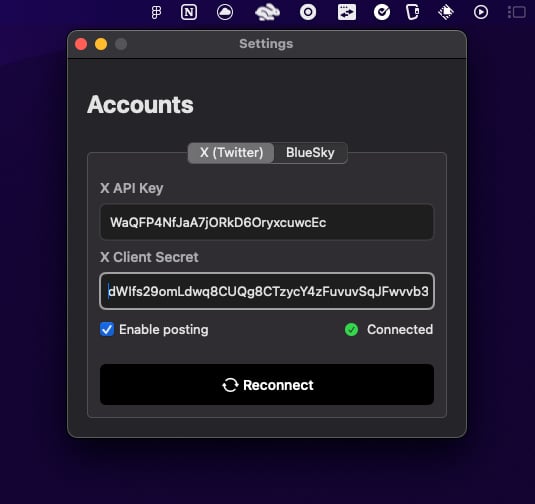 Screen where you can enter your X api key and client secret to connect your account
If needed, you can regenerate your Consumer Keys anytime in the X Developer Portal. After updating the keys in Statuz, you'll need to go through the authorization process again.
Having trouble? Contact our support team at support@statuz.gg and we'll guide you through the setup process.